
How to Set Up Microsoft Teams for Interviews
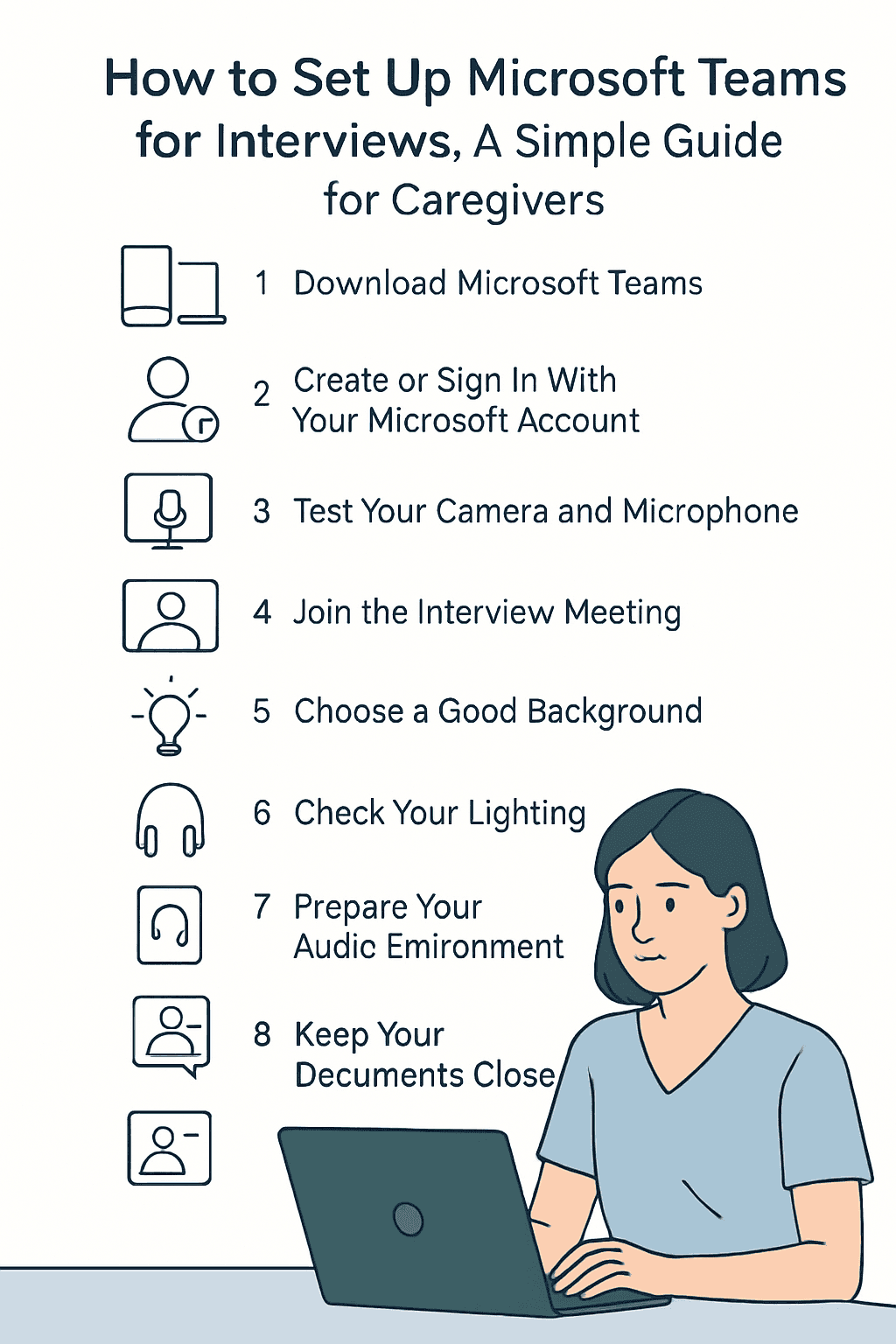
1. Download Microsoft Teams
You can use Teams on a phone or computer.
On your phone (Android or iPhone):
Open the App Store or Google Play Store
Search for Microsoft Teams
Tap Download or Install
On your computer (Windows or Mac):
Select Download for Desktop
Install the application
2. Create or Sign In With Your Microsoft Account
You can use:
A Microsoft email (Hotmail, Outlook)
Or any email address you already have
If you do not have a Microsoft account, the app will guide you to create one for free.
Enter your name clearly — this will appear to the interviewer.
3. Test Your Camera and Microphone
Before your interview:
Open Microsoft Teams
Go to Settings (your profile picture → Settings)
Select Devices
Test:
Camera
Microphone
Speakers
Make sure you can see yourself clearly and hear your own voice during the test.
4. Join the Interview Meeting
Most agencies send a meeting link to your email or WhatsApp.
To join:
Click the link
Teams will open automatically
Enter your name (if requested)
Click Join Now
Tip: Join 5–10 minutes early to avoid delays.
5. Choose a Good Background
Your interviewer does not expect a perfect home — but choose a clean and quiet space.
Good options:
A blank wall behind you
A tidy corner of your room
A desk or table setup
Avoid:
Loud environments
Bright windows behind you
People walking around
Teams also allows blurred backgrounds if needed.
6. Check Your Lighting
Good lighting makes you look professional.
✔ Light in front of your face
✘ No strong light behind you
✔ Natural light from a window
✔ A lamp placed in front of you if needed
7. Prepare Your Audio Environment
Use earphones if possible — this reduces noise
Make sure the room is quiet
Turn off TV, music, or background conversations
This helps the interviewer understand you clearly.
8. Keep Your Documents Close
Have the following ready in case the interviewer asks:
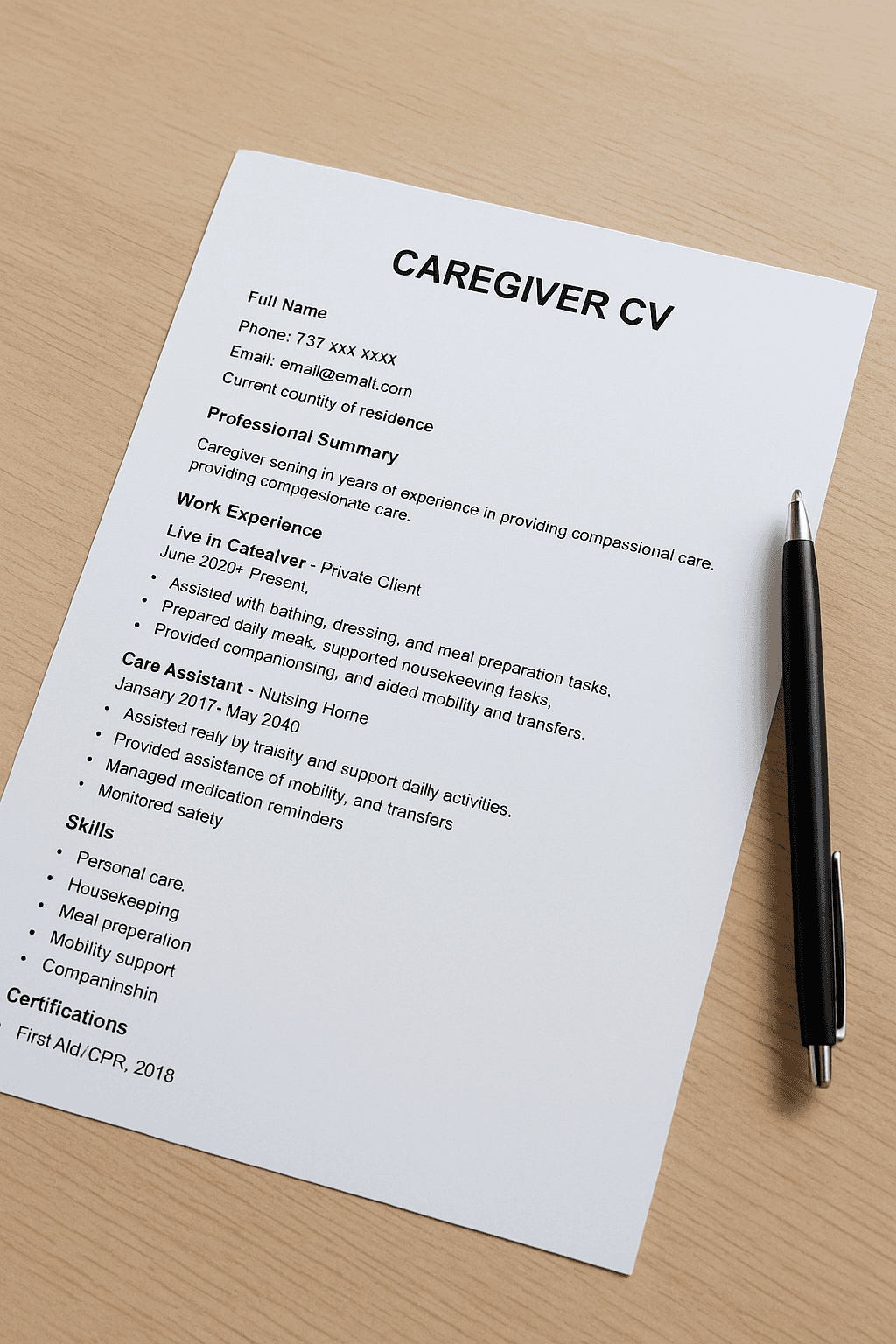
Your CV
Passport or ID
Availability dates
Reference names
Certificates (First Aid, caregiver training, language courses)
You may be asked to email or upload them after the interview.
9. Practice Before the Interview
If you are unfamiliar with Teams, practice with a friend:
Join a test meeting
Check how you look and sound
Practice answering a few basic questions
This builds confidence and reduces stress.
10. Join the Call With Confidence
When the interview begins:
Turn your camera on
Smile
Greet the interviewer clearly
Speak slowly and confidently
Ask questions if you need clarification
A calm, professional appearance makes a strong impression.
Final Tips
Plug in your phone or laptop: interviews can take 20–40 minutes
Use stable WiFi instead of mobile data if possible
Dress neatly — simple and professional
Sit upright with your camera at eye level
Being well-prepared shows that you take the role seriously and respect the interviewer’s time.
Similar Content